
Last Updated on March 1, 2026
📖 Part of the Secure AI Writing Workflows for Teams: A Complete Guide
This post is a deep-dive cluster page focusing on various use cases enabled by LocPilot in Word. Visit the pillar page to master the basic functions, explore advanced editing and content refinement, and dive into power user experiments—all designed to keep your writing process efficient and secure on intranet.
The following screenshots are powered by GPTLocalhost, which offers the same core features for individual use. LocPilot in Word is the intranet edition of GPTLocalhost designed for teams with air-gapped security. For a quick demo of LocPilot, please click here.
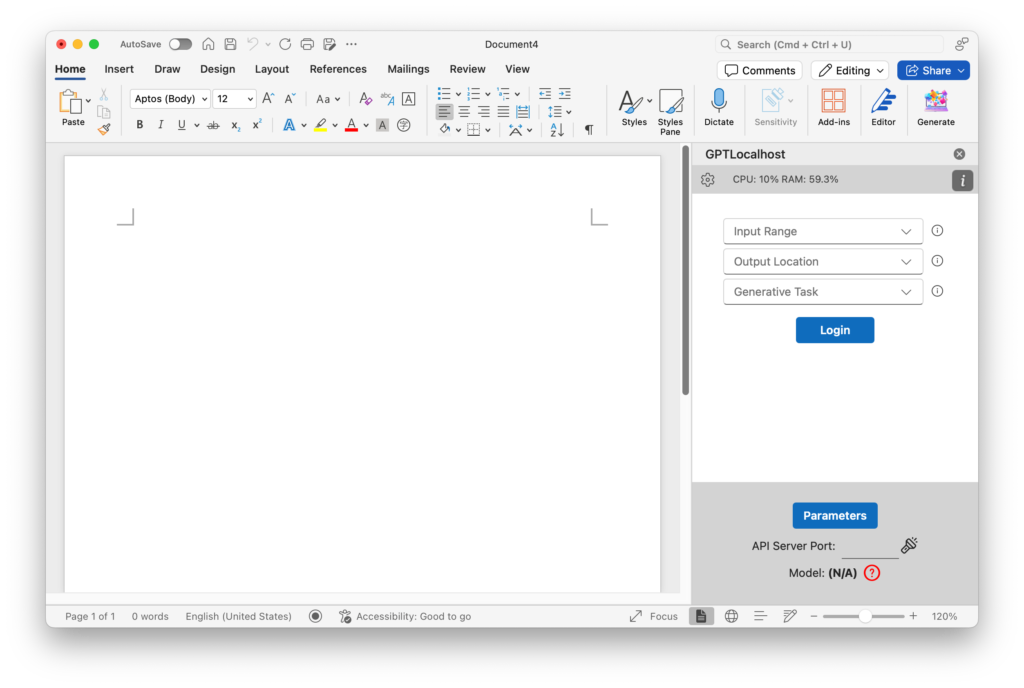
In this post, we’ll delve into the basic functions in LocPilot in Word, a local Word Add-in that allows you to utilize your local servers on your intranet. LocPilot in Word is designed with simplicity and flexibility in mind, making it easy to use for both beginners and advanced users. The UI/UX is streamlined to minimize complexity, while still providing the necessary features to expand its functionality as needed. By following a straightforward set of steps, you can unlock the power of your local LLM servers in Microsoft Word. The steps are relatively simple:
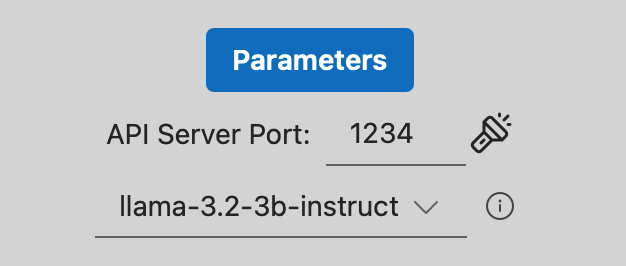
(1) You need to set the port number, which determines where your local LLM server will be accessed. This can be found by identifying the port number in the LLM server being used on your intranet. For instance, if LM Studio is chosen as the server, its default port number is 1234. Once the port number has been set, users can select their preferred LLM model in LocPilot in Word like the following:
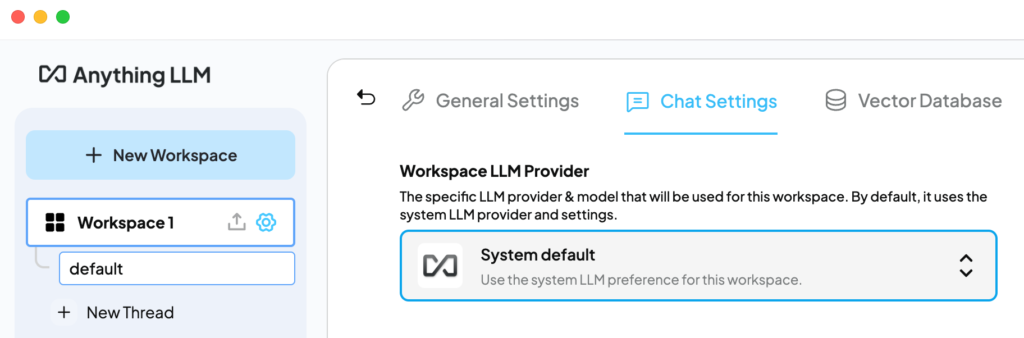
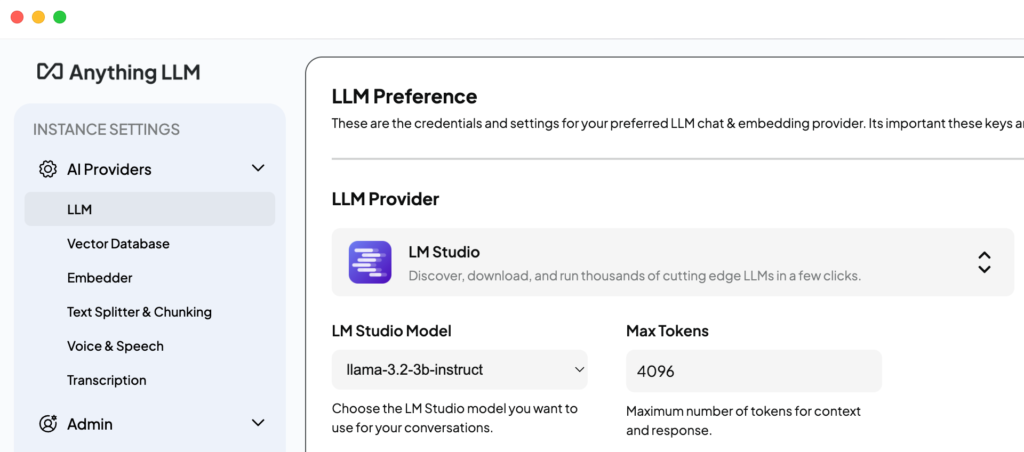
Another recommended LLM server is AnythingLLM its default port number is 3001. Once the specific port number has been set, users can then select their desired workspace in Microsoft Word from the available options. A key feature of AnythingLLM is its flexibility in defining the actual language model used within each workspace or as part of the system’s default configuration. In this instance, the system default LLM provider is LM Studio, and it utilizes the llama-3.2-3b-instruct model.
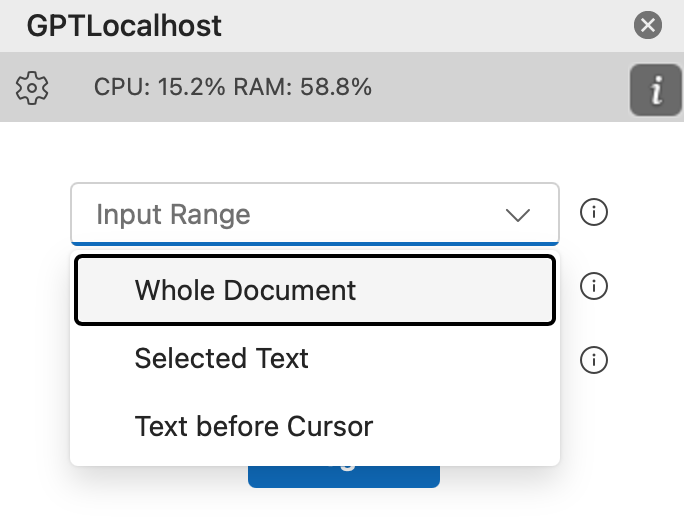
(2) You can define the range of text that you want to process, as shown below. The range could be the whole document, the text you selected, or the text preceding the cursor. It’s common for summarization tasks to involve the whole document, while paraphrasing typically requires a more targeted range, such as selecting specific text.
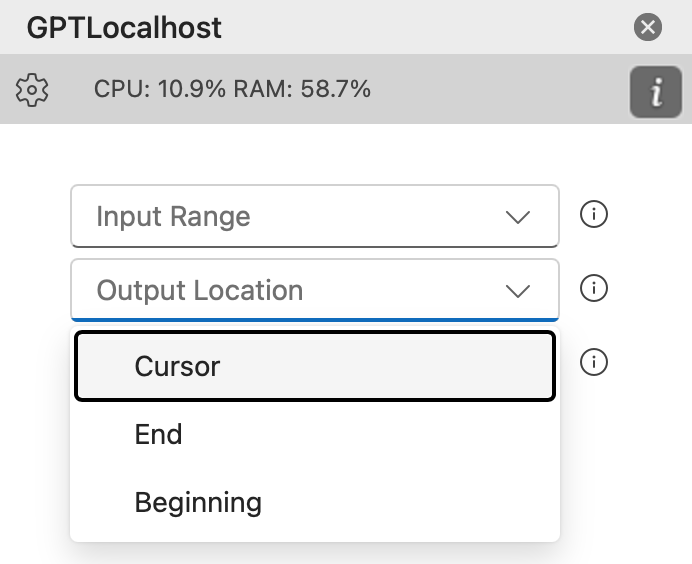
(3) You can specify the location where your output will be placed in your document. This ensures that your results are easily accessible and can be merged into your document. The location can be the cursor position, the end of the document, or the beginning of the document. By choosing one of these locations, you can effectively manage the generated text and the existing content in your document.
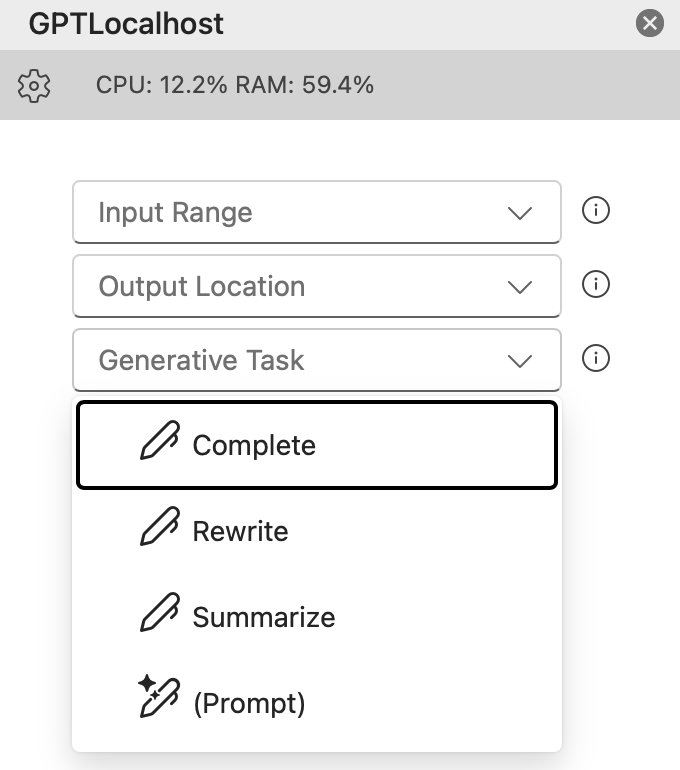
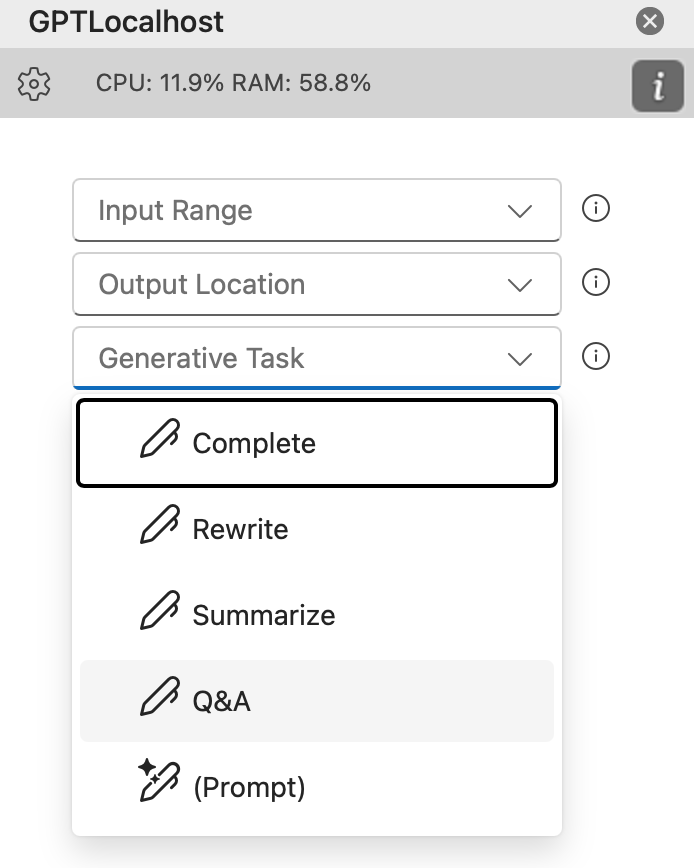
(4) When working on your text, you have several options for what you’d like to do next. You can choose from pre-defined tasks such as Complete to continue writing, Rewriteto explore alternative ideas, or Summarize to condense the content into a concise summary.
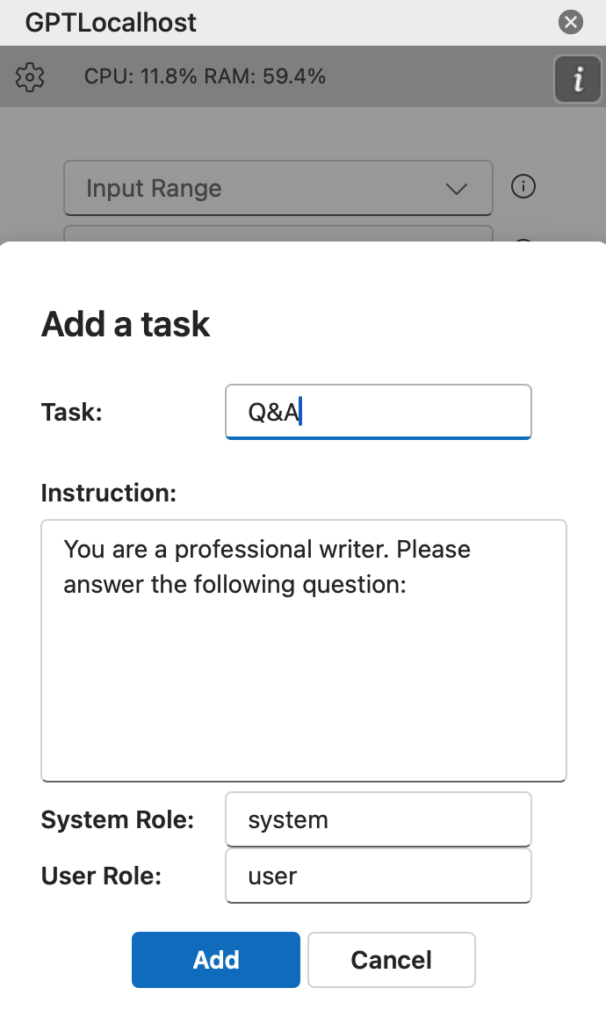
Alternatively, you can define your own task by selecting Prompt and customizing it to suit your needs. If you’d like to make it a new task, simply click on the icon next to the dropdown menu and save it for future use.
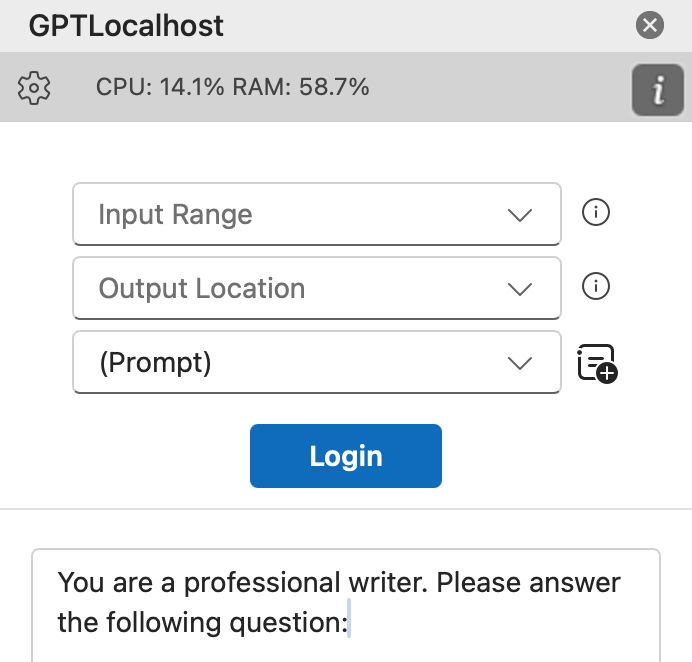
Once you’ve given your new task a name, simply click “Add” to add it to the drop-down list, making it easily accessible for future reference.
The newly assigned task will be visible in the drop-down menu, awaiting selection and action.
In conclusion, LocPilot in Word offers a user-friendly and versatile solution for harnessing the capabilities of intranet LLM servers within Microsoft Word. Its intuitive design ensures that both novice and experienced users can effortlessly leverage their intranet servers for AI-assisted writing. By embracing simplicity and flexibility, LocPilot in Word provides an ideal local Word Add-in for anyone looking to enhance their Microsoft Word productivity.
Empower Your Team with Secure, Professional AI
The future of professional writing isn’t just about better tools—it’s about providing your team with the intelligence of AI within an air-gapped environment. By bringing your AI workflows onto your local intranet, you give your team powerful LLMs to innovate, refine, and collaborate on their most sensitive projects with absolute confidence and peace of mind.
Ready to elevate your team’s productivity? Download LocPilot and experience how high-performance, local AI can transform your drafting process. Equip your office with a professional-grade environment where proprietary ideas are both enhanced and protected. You can start with our free tier today to explore the possibilities—no credit card required.
For more creative uses of intranet AI in Microsoft Word, explore additional demos available on our channel at @LocPilot.